ShemenMusic app
Every ShemenMusic backing track, with the words big enough to sing from.
For iPhone, iPad and Android. It goes on your home screen from this website.
No app store needed.
You add the app from this website. It sits on your home screen with its own icon, and it opens like any other app.
There is nothing to find in the App Store or the Play Store, and no account to make.
 ShemenMusic
Every song, two ways.
Every ShemenMusic instrumental is in the app with its words. Most come in two versions, so you can choose who sings the harmonies.
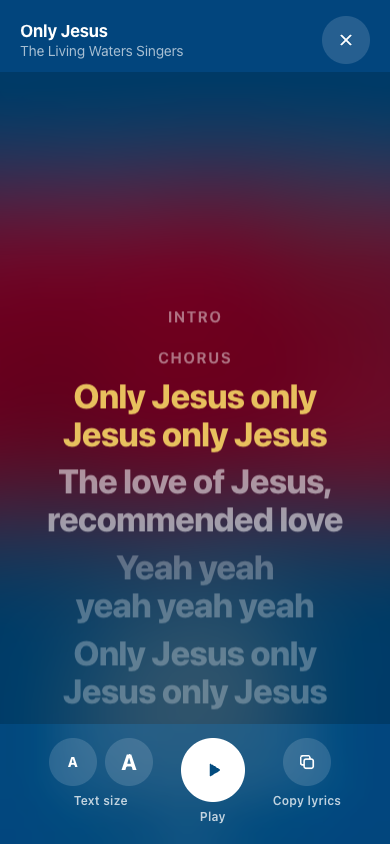
Big lyrics.
Made to be read from a phone on a mic stand. The words are large and bold, right in the middle of the screen.
The line to sing is yellow.
The line you sing now is lit in yellow. The next line waits underneath it, so you can read ahead.
Three dots count you in.
Before the first line, and after every long break in the music, three dots light up one by one. When the third one lights, you sing.
Make the words bigger.
Two A buttons make the words larger or smaller. Long lines wrap onto a second line instead of shrinking.
The screen stays on.
While the app is open your phone will not go dark, even if nobody touches it for the whole song.
Plays with no signal.
Save an album or a set list while you have Wi-Fi. After that the songs and their words are kept on your phone.
They play with no internet at all, even in airplane mode. A church with weak signal is no problem.
Play it through a speaker.
Connect a Bluetooth speaker, the wireless kind you pair with your phone, and the music plays through it.
You can pause, skip and go back from the lock screen, without opening the app or unlocking the phone.

One list for the whole team.
Put Sunday’s songs in My list, in the order you will sing them. Tap Share and send the link to your group.
Everyone who opens the link gets the same songs in the same order. Nobody has to write the list out again.
Lists we made for you.
Selections are set lists that are ready to play. Pick one and the songs are already in order.
Coming soon
Live Listen.
Hold up your phone while a song plays in the room. The app hears which song it is and puts the words up, then follows along line by line.
Live Listen takes over from Prompter, our older lyrics tool.
How you’d use it on Sunday.
During the week, make the list.
Open My list and add the songs for Sunday in the order you will sing them.
Send it to the team.
Tap Share and send the link to your group chat. Every singer opens it and gets the same list.
Save it while you have Wi-Fi.
Each person saves the list to their phone. Now it plays even if the church has no signal.
On Sunday, set up.
Connect the speaker, or run a cable to the sound desk. Put your phone on the mic stand and open the list.
Press play and sing.
Three dots count you in. The line to sing turns yellow, and the next one is waiting underneath.
What you need.
A phone or a tablet
An iPhone, an iPad or an Android phone. On iPhone and iPad use Safari. On Android use Chrome.
Wi-Fi, once
You need internet to add the app and to save songs. After that, saved songs play without it.
Some free space
Saved songs are kept on your phone, so it needs room for them. A whole album fits easily on most phones.
A speaker, if you like
Any Bluetooth speaker works, or a cable to your sound desk. The phone’s own speaker works too.
Questions people ask.
On iPhone, why do my downloaded songs disappear?
An iPhone keeps the home-screen app separate from Safari. Add ShemenMusic to your home screen first, open it from there, then download your songs inside the app.
Do I get it from the App Store or the Play Store?
No. You add it from this website, straight to your home screen. It gets its own icon and opens like any other app. It also updates itself, so you never need to download a new version.
How do I put it on my home screen?
On an iPhone or iPad, open the app in Safari. Tap the Share button (the square with an arrow pointing up), then scroll down and tap “Add to Home Screen”. On an Android phone, open it in Chrome, tap the menu (the three dots ⋮) and tap “Install app” or “Add to Home screen”. From then on, open it from its icon.
What do “With backing vocals” and “Without backing vocals” mean?
Backing vocals are the singers who sing the harmonies behind the lead. “With backing vocals” has them. “Without backing vocals” has only the band, so your own singers do the harmonies. You can switch between the two in the middle of a song and it stays at the same place.
Does it need the internet?
Only to save songs. Once an album or a set list is saved on your phone, it plays with no internet at all, even in airplane mode.
The words are too small to read from where I stand.
Tap the bigger A at the bottom of the lyrics screen. Keep tapping until you can read it comfortably from the mic stand.
My screen keeps going dark in the middle of a song.
The app keeps your screen on by itself while it is open. If yours still goes dark, open the app from its home-screen icon, not from a browser tab.
Can the whole team sing from the same list?
Yes. Put the songs in My list, tap Share and send the link to the group. Everyone who opens it gets the same songs in the same order.
What happened to Prompter?
Prompter is becoming part of this app. Its job, hearing the song and showing the words in time, comes back as Live Listen. Live Listen is coming soon.
A song is missing its words, or a word is wrong.
Tell us the song and what is wrong on the contact page. We check the words against the recording and fix them.
See the big lyrics for yourself.
Open a song and press play. This is the same lyrics screen the app uses.
Running the big screen at church? See ShemenMusic Desktop